

Bring ConnectWise PSA into your client experience.
Connect service delivery, projects, agreements, products, and opportunities to a branded portal. Keep ConnectWise as your operational system while clients follow the work, review costs, and make decisions in MSPortal.
- Service requests and client visibility
- Projects, templates, and onboarding
- Agreements, products, and planning
Where your PSA data shows up in MSPortal.
Follow the connection from companies, sites, contacts, and members through delivery, commercial records, and client reviews. Each workflow below explains what your team can do and which changes reach ConnectWise.
Start with the right clients, people, and locations.
Bring companies, sites, contacts, and members into the portal’s company context. Company mapping connects the records in ConnectWise to the client experience you manage in MSPortal.
- Synchronize companies, sites, contacts, and members and match them to the correct portal companies and users.
- Choose which source companies and contacts to import, with automatic import options for future matching records.
- Give each client access to the relevant company information through MSPortal roles and permissions.
- Use synchronized account-team and member information to support company and staff context.
How it connects
ConnectWise supplies the source records. Importing a contact and inviting that person to the portal are separate actions; your MSP controls invitations and access.
Make the service desk part of your client portal.
Clients can submit requests and follow the conversation in MSPortal while your team works with ConnectWise tickets and the routing you already use.
- Collect requests through configurable service forms or the AI Assistant, with a review step before submission.
- Use synchronized service boards, statuses, types, and priorities to configure the portal’s ticket workflow.
- Show ticket activity and replies, let authorized users follow up, and use the configured client-comment status.
- Bring ticket notes and time-entry information into service visibility and reporting, with technician mapping and company access.
How it connects
Ticket reads and supported creation/comment actions use the ConnectWise connection. Your request-template configuration and PSA write permissions determine where new work is created.
Sync ConnectWise projects and share progress with clients.
Connect the delivery plan to the conversation around it: the work your team manages, the progress clients see, and the decisions needed to keep moving.
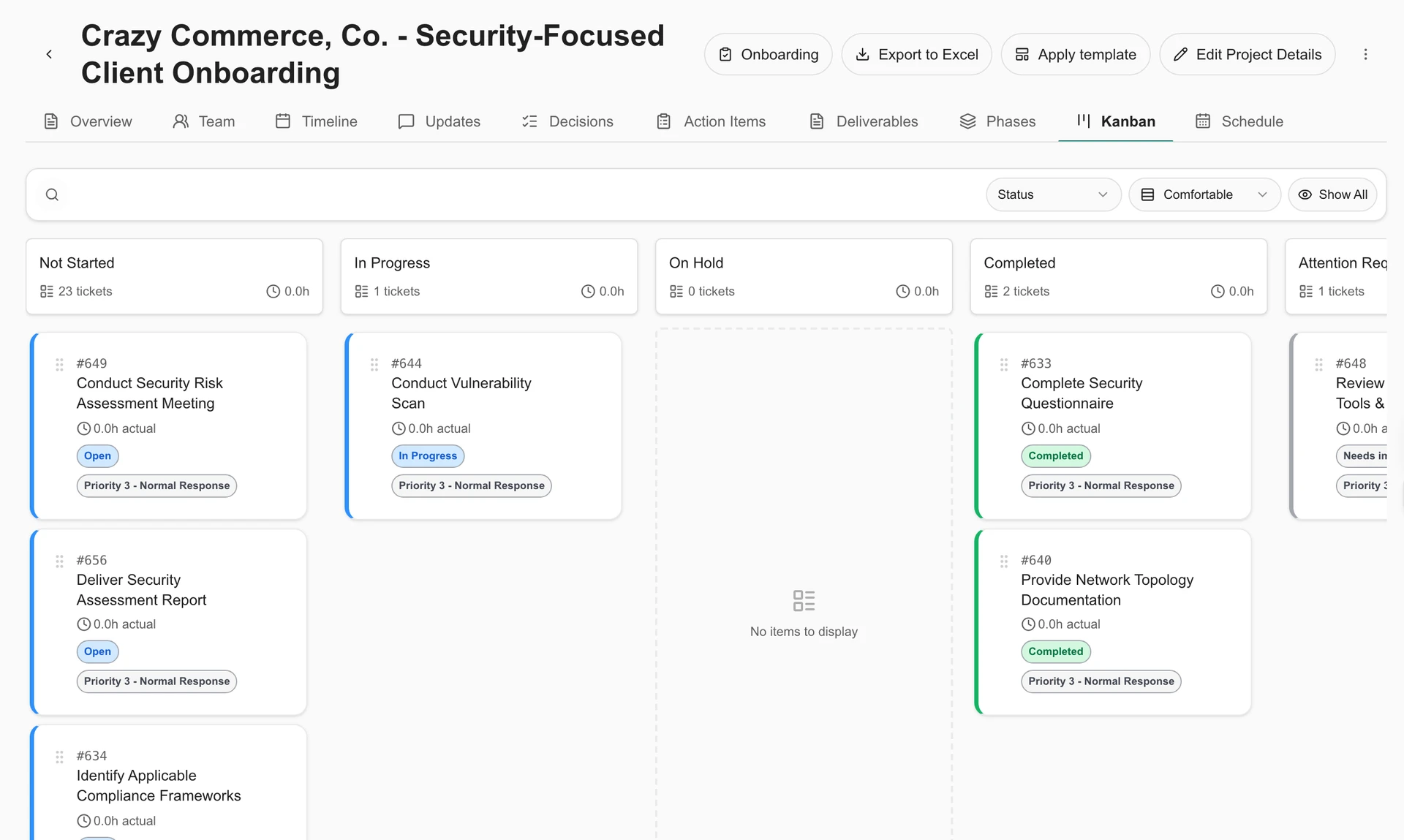
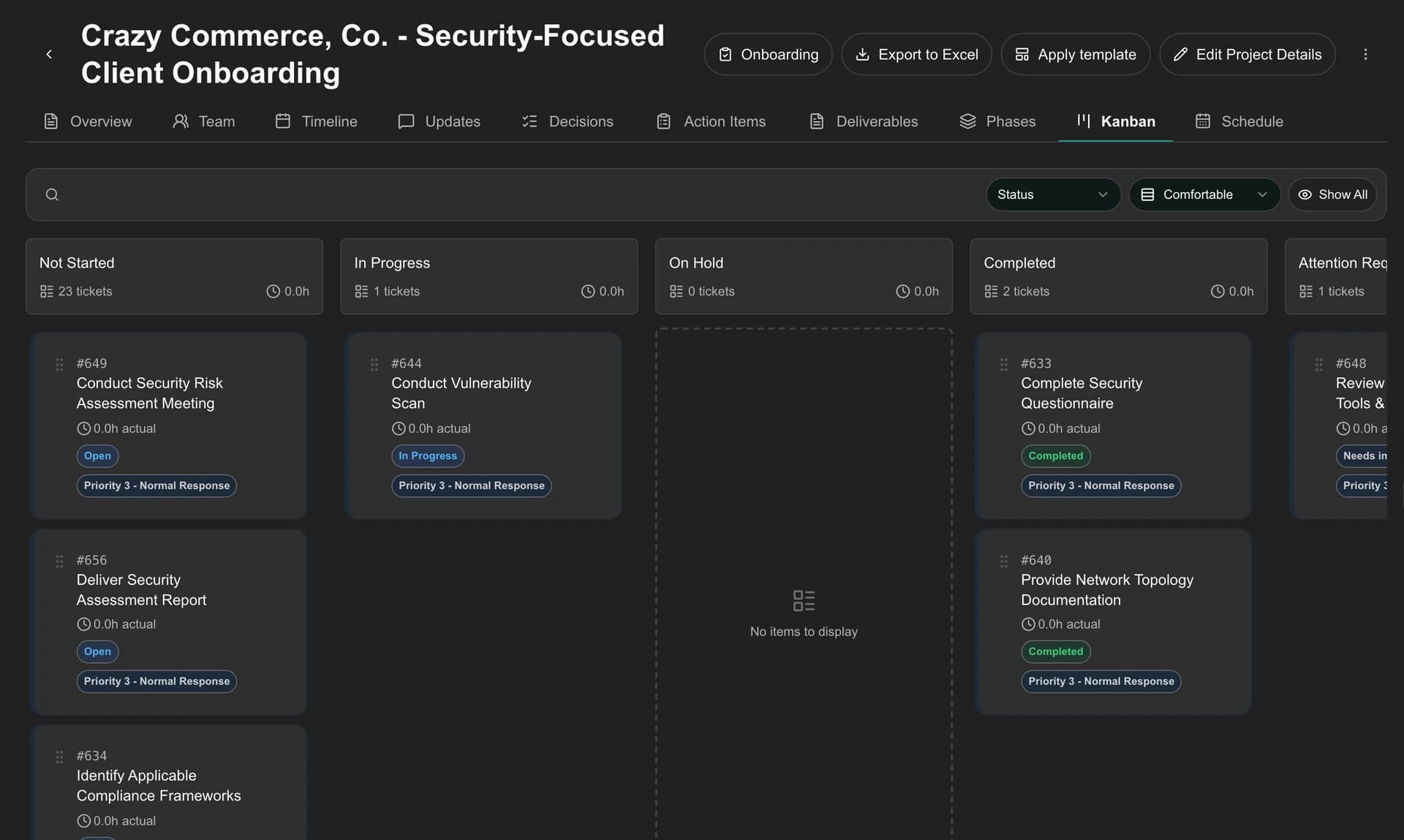
- Synchronize projects, phases, project tickets, notes, and time entries; inspect progress in portfolio, phase, Kanban, and schedule views.
- Create projects and apply reusable MSPortal templates to create phases and tickets. Import source PSA templates where available.
- Update supported project and ticket fields, lifecycle status, ticket owner and priority. Add checklist items, complete them, and edit progress notes; deletion has its own permission.
- Plan task dates and assignments in the Schedule workspace. Review Smart Schedule proposals before saving dates and owners to ConnectWise.
- Read the ConnectWise project team in an MSP-only view. Share selected updates, milestones, deliverables, decisions, and action items with clients.
How it connects
Project, phase, ticket, checklist, and time operations use the API member’s corresponding ConnectWise permissions. Project-team assignments are read in MSPortal and maintained in ConnectWise. Client collaboration content and scheduling rules stay in MSPortal.
Connect the client welcome to the delivery work.
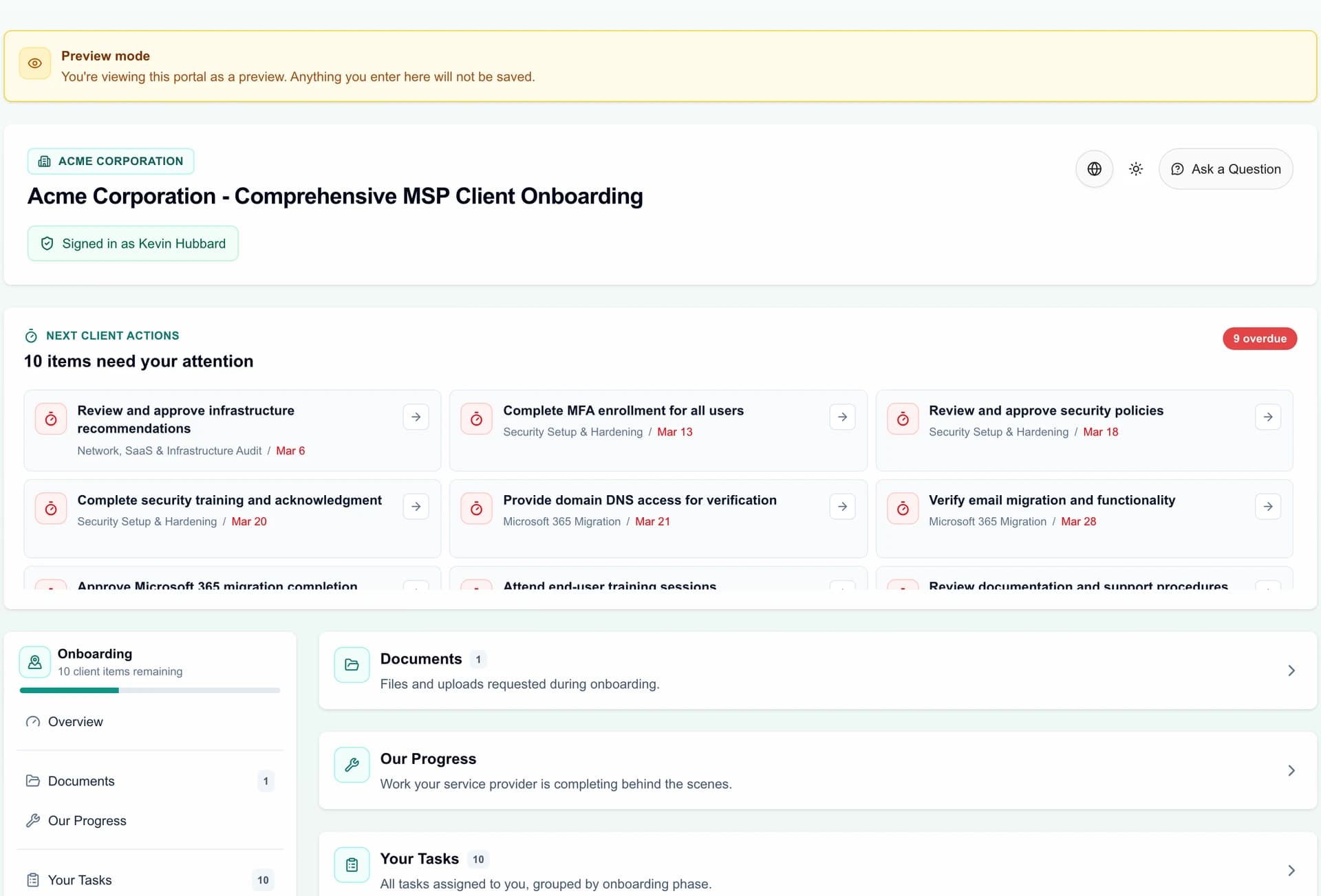
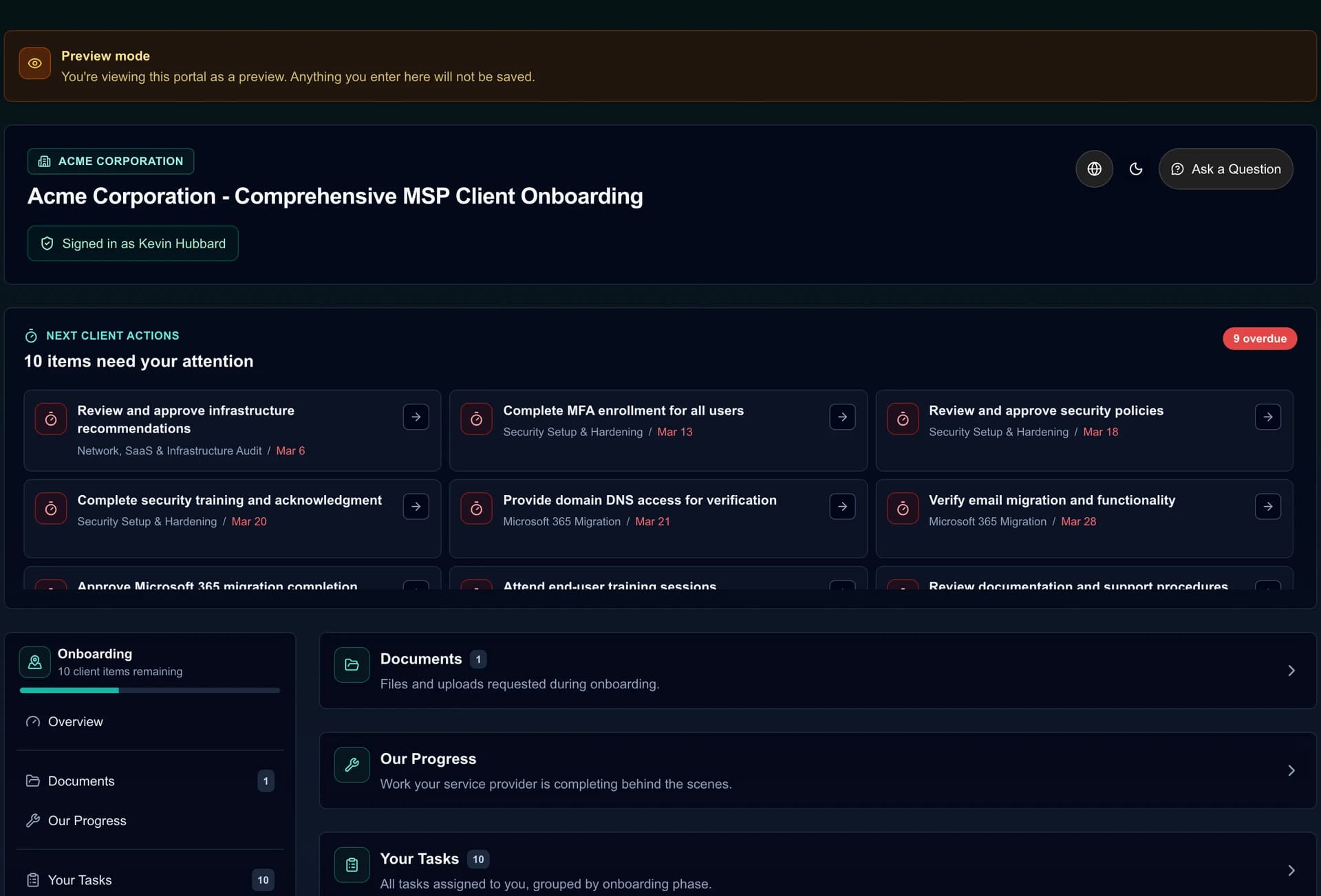
Create a guided onboarding experience and link it to an existing ConnectWise project—or create and link a new project from the onboarding portal.
- Guide clients through phases, tasks, forms, file uploads, meetings, training, surveys, signature tasks, and secure credential handoff.
- Create project tickets from selected onboarding tasks, with source-record badges and direct PSA links.
- Log time against linked onboarding work, including the description and billable setting.
- Configure automatic ticket creation, bidirectional linked-ticket status sync, and provider defaults in Onboarding settings.
- Choose default board, status, priority, and ticket type from synchronized ConnectWise choices.
How it connects
The onboarding pages, client forms, and submissions live in MSPortal. Project creation, linked work, time entries, and enabled status sync connect to ConnectWise; background synchronization can introduce a delay.
Give clients a clear view of their agreements.
Bring ConnectWise agreements into the client portal so clients and account managers can review service terms, billing context, balances, and the documents you share.
- Find records by name, type, status, and company. Review start/end dates, contract number, billing amount, and cycle where supplied.
- Read current and historical balances, including hours, incidents, or money where the source provides them.
- Upload and manage agreement PDFs in MSPortal and make the appropriate documents available to client readers.
- Keep each record within the mapped company and the reader’s assigned permissions.
How it connects
Terms and balances synchronize from ConnectWise; shared PDFs are managed in MSPortal. This view does not edit, renew, or sign the source agreements, and available balance units vary by record.
Turn your PSA catalog into a client budget.
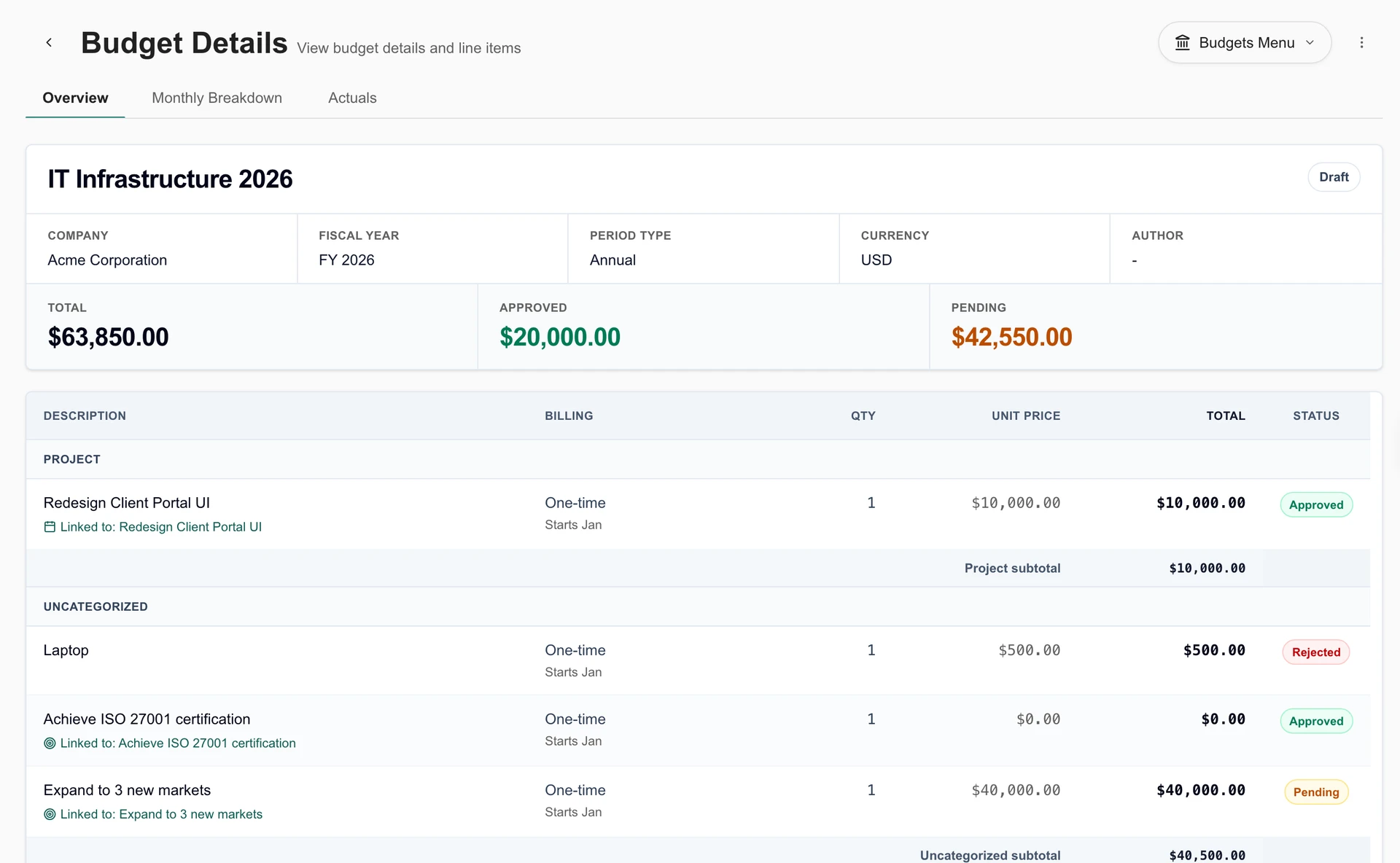
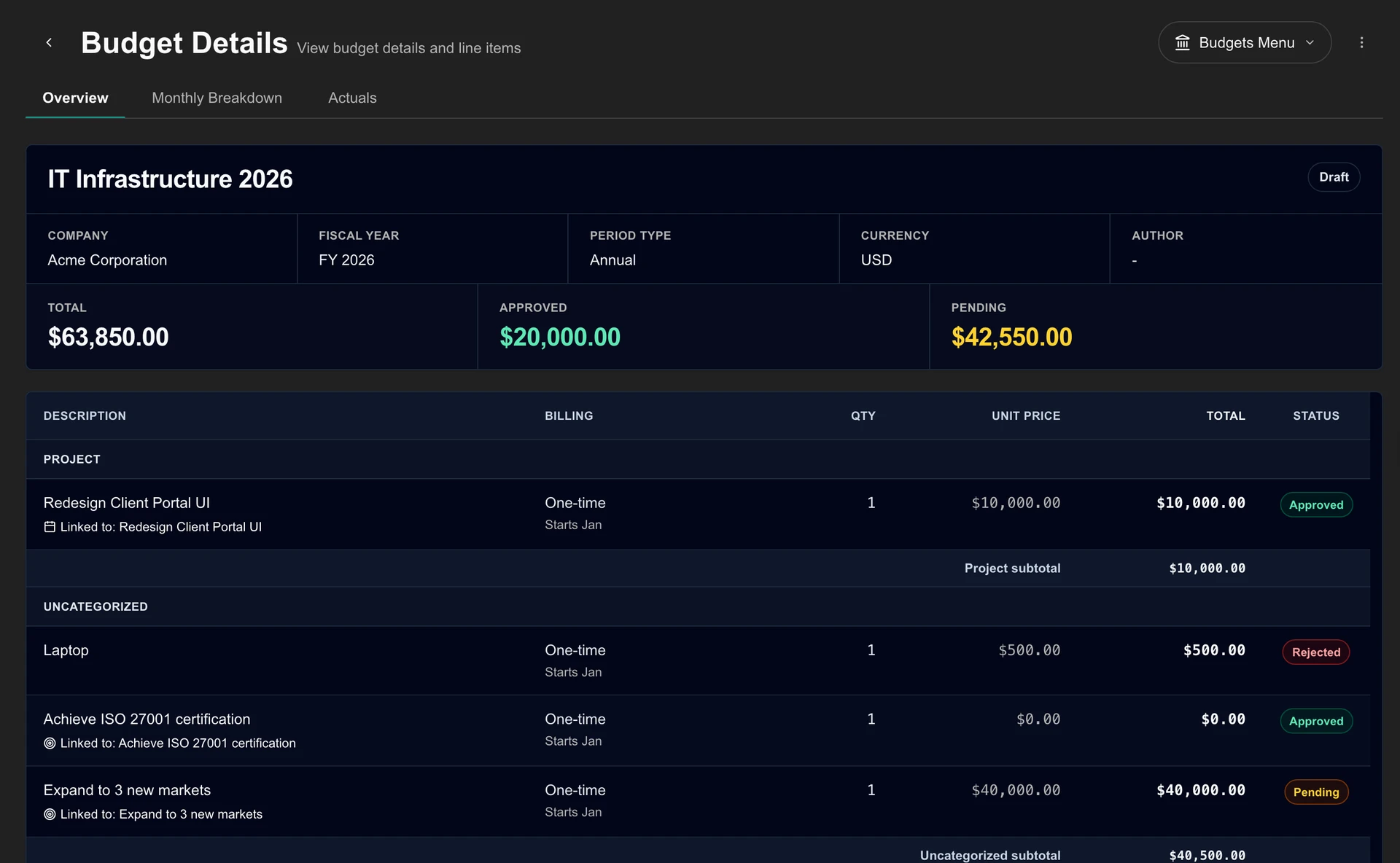
Use products already synchronized from ConnectWise to build MSPortal’s budget catalog, then use that catalog in the budgets and plans you share with clients.
- Search source products by name, SKU, or category and identify which are already linked to the budget catalog.
- Create budget products from synchronized source details, including price, vendor, category, and recurrence where supplied.
- Link a source product to an existing budget product when you already have the right catalog entry.
- Use the resulting catalog products in planned costs and budgets, reviewing price and billing recurrence before sharing.
- Compare approved or archived budgets with synchronized, tax-exclusive customer invoice spend, including matched line outcomes and unallocated exceptions.
- Trace actual spending to invoice evidence using budget references, linked projects, and product identities; review exceptions or allocate spend manually.
How it connects
This imports or links ConnectWise products into MSPortal. Linking preserves an existing budget product’s fields and price. Distributor ordering and subscription changes use separate Pax8 or Sherweb Storefront integrations. Budget actuals require invoice access, enabled invoice sync, and a mapped company. Closed ConnectWise invoices contribute invoice totals. Overall actual spend covers eligible company invoices in the budget period and currency; use line outcomes for project-specific allocations.
Connect sales opportunities to the client’s plan.
Bring ConnectWise opportunities into Planner so a sales discussion can become a visible roadmap initiative with context, timing, and an estimate.
- Import synchronized opportunities into Planner with titles, descriptions, due dates, and initial cost estimates.
- Map open, won, and lost opportunity categories to Planner statuses; configure automatic imports and ongoing field refresh.
- Link planned work to supporting devices, projects, tickets, goals, and compliance findings.
- Use the available Create opportunity action to create a new ConnectWise opportunity from planning information, then save its relationship to the Planner item.
How it connects
Opportunity imports read from ConnectWise; creating a new opportunity is an explicit PSA write. Configured source fields can refresh linked Planner items. A client’s roadmap approval does not by itself close or mark the source opportunity won.
Make invoices easier for clients to find and understand.
Show synchronized ConnectWise invoices in the same portal clients use for service and planning, with company-scoped access and filters for the fields your PSA supplies.
- Review invoice dates, due dates, status, totals, and available balances and billing details.
- Open source PDFs where available, download selected PDFs in a ZIP, or export the current invoice page to CSV.
- Add invoices to an upcoming meeting agenda when they need a client conversation.
- Offer a Pay Now link on eligible invoices when a separate BenjiPays payment integration is configured.
How it connects
ConnectWise supplies invoice balances and applied payments; synchronization also rechecks unpaid records. Invoice records are read-only in MSPortal. Payments happen through the configured provider, and updated status arrives through source synchronization.
Connect the asset inventory to client planning.
Synchronize ConnectWise configurations and connect device information to the companies and planning workflows it supports.
- Bring in-scope configurations into the supported device synchronization and import workflow.
- Use company mapping and import controls to associate discovered assets with the correct client.
- Link devices to roadmap initiatives and use lifecycle or warranty information when planning replacement work.
- Enable optional warranty writeback to update matched ConnectWise source records with resolved warranty expiration dates.
How it connects
Configuration synchronization and portal device records have their own scope and mapping. Warranty writeback is an optional ConnectWise update and needs the corresponding write access.
See planned changes alongside scheduled work.
Bring ConnectWise tickets flagged as requests for change and schedule entries into MSPortal’s shared calendar so your team can assess change windows with the surrounding work in view.
- View imported change windows, status, risk, company/site context, assigned technicians, and links to the source record.
- Read change and appointment layers alongside other accessible calendar events.
- Use MSPortal change workflows, freeze windows, and conflict indicators when planning portal-owned changes.
- Manage ConnectWise-owned change records in the source PSA and open them directly from their portal calendar entry.
How it connects
Imported PSA-owned changes are read-only in the portal calendar. Portal scheduling, freeze windows, and lifecycle actions do not write back to this PSA.
Make service delivery visible in your client reviews.
Use ConnectWise information as part of a wider account conversation in MSPortal, from service activity and project progress to planning the next quarter.
- Use synchronized service and project information in dashboards, client reviews, and reporting blocks.
- Turn the delivery context into a review conversation alongside roadmaps, budgets, and recommendations.
- Use AI-assisted summaries and report drafting, then review the result before sharing it with clients.
- Use the connected service evidence in client reviews while selecting the company, reporting period, and records you intend to share.
How it connects
ConnectWise ticket and project data supplies service evidence. Add CSAT through a separately supported feedback integration to bring satisfaction results into the same reporting experience.
Understand the relationship between revenue and support effort.
Use synchronized ConnectWise commercial and service data in MSP Tools to review client health, ticket trends, and operational account economics.
- Compare available revenue, support effort, seat economics, and complete-month revenue trends.
- Classify recurring and non-recurring revenue using agreement additions/products, product type/class, agreement type, and individual agreement overrides.
- Configure the reporting model by device, user, or a hybrid of the two, with company seat profiles where needed.
- Use ticket trends and client health evidence to prioritize account conversations and planning work.
How it connects
These are MSP staff views. Results depend on source coverage, company mapping, revenue classification, and the reporting model; they are operational indicators, not accounting net-profit statements.
Choose what to sync and who can see it.
Choose the companies, data, and actions your MSP needs. Portal roles control what staff and clients can see and do; PSA permissions control access to the source records.
Connect your PSA
Create a dedicated API member in ConnectWise. Connect with your regional API URL, Company ID, public key, and private key.
Check the access you need
Review required and optional capabilities in the Permissions step. Grant source access for the records you want to synchronize and the specific write operations you intend to use.
Select the data and defaults
Select service boards, company types and statuses, and the optional data you want to synchronize. Configure ticket status groups, opportunity mappings, and invoice visibility.
Map companies and import records
Match source companies to portal companies. Review the intended contact and device imports, then configure invitations, staff roles, and client visibility.
Verify the client workflow
Check the completed sync and use a designated test company to verify requests, project actions, onboarding links, and the records a client can see. A successful read-permission check does not verify every write.
Questions about the integration
Does MSPortal replace ConnectWise PSA?
ConnectWise PSA remains the source for your PSA records. MSPortal adds a branded client experience, planning, reporting, onboarding, and collaboration around those records, with supported actions that can write back to the PSA.
Can we create and manage ConnectWise projects from MSPortal?
Project, phase, ticket, checklist, and time operations use the API member’s corresponding ConnectWise permissions. Project-team assignments are read in MSPortal and maintained in ConnectWise. Client collaboration content and scheduling rules stay in MSPortal. Supported project creation, templates, lifecycle updates, and scheduling are described in the project workflow above.
Can onboarding create work in ConnectWise?
Yes. Link an onboarding portal to an existing ConnectWise project or create and link a project. Create linked tickets or tasks from onboarding tasks, log time, and enable automatic creation or bidirectional status sync using the configured provider defaults.
Can clients change agreements, products, or invoices in the PSA?
The agreements and invoice views expose synchronized information. Product import creates or links the MSPortal budget catalog. These are separate from editing PSA billing records, distributor orders, or a payment integration.
Does connecting the PSA turn on every feature for every client?
You choose data scope and optional syncs. Company mapping determines which client records belong together, and MSPortal roles determine visibility and actions. Extra services such as distributor ordering or invoice payment links need their own integrations.
Is all synchronization bidirectional and live?
No. Source synchronization, portal-owned data, and explicit PSA writes are different workflows. Record updates can arrive through background synchronization. Each section describes the direction and the supported write actions.
Walk through the workflows that matter to your MSP.
Bring your questions about projects, onboarding, commercial data, and client access. We’ll show how the integration fits your process.
See it with your PSA